Lightroom Mobile Is a Full Editing Studio in Your Pocket — Here's How to Actually Use It

Lightroom Mobile Is a Full Editing Studio in Your Pocket — Here's How to Actually Use It

My phone used to be where photos went to die. I’d shoot something decent on my mirrorless, import it to my computer, and if I hadn’t edited it within 48 hours, it entered a kind of limbo. Meanwhile, whatever I shot on my phone sat in a camera roll that I’d scroll past guiltily for months. The gap between “captured” and “edited” was just too wide. Lightroom Mobile closes that gap almost entirely, and I didn’t fully appreciate how capable it was until I went through this overview tutorial from Aaron Nace over at PHLEARN.

Your Phone Is a Darkroom: How to Actually Edit Photos in Lightroom Mobile Without Losing Your Mind

Your Phone Is a Darkroom: How to Actually Edit Photos in Lightroom Mobile Without Losing Your Mind

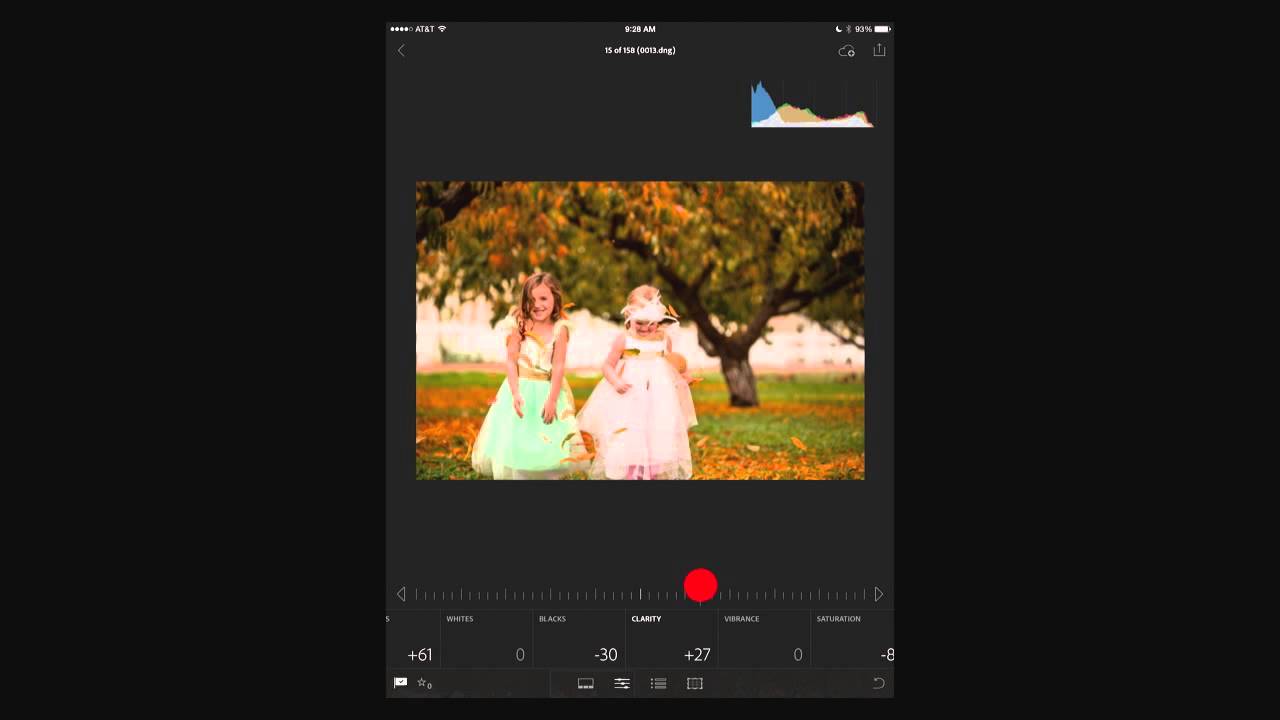
I was sitting at a coffee shop in East Nashville last spring, waiting on a friend, when I noticed I had 47 unedited photos from a shoot sitting in my camera roll. My laptop was at home. The shoot was for a client who needed selects by end of day. So I opened Lightroom Mobile, synced the raw files through Creative Cloud, and edited the whole batch on my phone in about 40 minutes.

Read Your Image Before You Touch a Slider: Lightroom Mobile's Most Underused Color Tools

Read Your Image Before You Touch a Slider: Lightroom Mobile's Most Underused Color Tools

I edit a lot of photos on my phone. Not because I prefer it, but because deadlines don’t care where you are. And for years, my mobile edits had a subtle problem I couldn’t name: they looked great on my screen, then landed in delivery looking either blown out or flat. The culprit wasn’t my eye. It was that I was trusting a glowing rectangle held under a Nashville sun to tell me the truth about my exposure.

Where Do Your Lightroom Mobile Photos Actually Live? Here's the Truth

Where Do Your Lightroom Mobile Photos Actually Live? Here's the Truth

I’ve had the same conversation probably a hundred times. Someone corners me after a workshop, or slides into my DMs, and the question is always some version of the same thing: “Wait, so where are my photos actually going when I use Lightroom Mobile?” It’s one of those questions that sounds simple but opens up into something genuinely confusing if you haven’t had it laid out clearly. Adobe’s documentation doesn’t exactly make it easy either.

Your Phone Can Edit Like a Pro — If You Stop Fighting Lightroom Mobile's Quirks

Your Phone Can Edit Like a Pro — If You Stop Fighting Lightroom Mobile's Quirks

I was standing in a coffee shop in East Nashville last spring, waiting on an oat milk latte I’d already forgotten I ordered, when I opened Lightroom Mobile to kill two minutes. I ended up finishing three edits. Not rough drafts. Finished, export-ready images that went live on a client’s feed that afternoon. The barista called my name twice. That’s the version of mobile editing nobody talks about, because the conversation is usually stuck somewhere around “can you really edit on your phone?

Browse, Mask, Retouch: Lightroom Mobile's Newest Features Make On-the-Go Editing Actually Good

Browse, Mask, Retouch: Lightroom Mobile's Newest Features Make On-the-Go Editing Actually Good

My phone has about 4,000 unedited photos on it. Not because I’m lazy, but because the import-edit-export pipeline on mobile has always felt like homework. By the time I’ve pulled the images into Lightroom, I’ve lost the momentum I had when I took the shot. That friction is a creativity killer, and it’s the reason I kept defaulting to desktop even for quick edits I genuinely could have handled on my phone.

Lightroom Mobile Got a Makeover — Here's What Actually Changed (And How to Use It)

Lightroom Mobile Got a Makeover — Here's What Actually Changed (And How to Use It)

If you edit photos on your phone with any regularity, you’ve probably opened Lightroom Mobile recently and thought, “Wait, did they move everything?” The answer is yes - and mostly for the better. The old interface had this horizontal strip at the bottom where you’d swipe left and right to hunt for settings, then interact with controls that never quite behaved the way you expected. It was functional, but it felt like a compromise.

Your Phone Is a Darkroom: How to Actually Edit in Lightroom Mobile Without Losing Your Mind

Your Phone Is a Darkroom: How to Actually Edit in Lightroom Mobile Without Losing Your Mind

I edited an entire client gallery from a hotel bed in Memphis last spring. Not because I was being lazy, not because I forgot to bring my laptop — I deliberately left it at home. Forty-three portraits, delivered, synced, and client-approved before I checked out the next morning. The tool was Lightroom Mobile, and the result was indistinguishable from anything I would have done at my desk with my usual setup, vinyl spinning in the background.

The Lightroom Mobile Camera Is Actually Good Now (Here's What Changed)

The Lightroom Mobile Camera Is Actually Good Now (Here's What Changed)

I’ll be honest with you: for a long time I treated the Lightroom Mobile camera like that bonus disc that comes with a box set. Technically included, but never actually used. My default camera app got the shot, Lightroom did the editing, and that was the whole pipeline. Then I started noticing the RAW files I was working with from my phone felt limited in a way that had nothing to do with my editing.

Lightroom Mobile Finally Gets a Brush (And Sharpening Too) - Here's How to Use Both

Lightroom Mobile Finally Gets a Brush (And Sharpening Too) - Here's How to Use Both

If you edit photos on your phone with any regularity, you already know the specific frustration of reaching for a tool that should be there and finding nothing. For me, that tool was the brush. Every time I handed off a mobile edit workflow to a client or walked someone through Lightroom Mobile at a workshop, the question was the same: “Where’s the brush?” And every time, I had to explain that it just wasn’t there yet.

Your Phone Is a Darkroom: How I Actually Edit on Lightroom Mobile Without Losing My Mind

Your Phone Is a Darkroom: How I Actually Edit on Lightroom Mobile Without Losing My Mind

Last spring I was sitting in the waiting room of a mechanic’s shop in East Nashville, staring at a memory card reader plugged into my phone, watching 47 RAW files sync to Lightroom Mobile. I had a client delivery due by end of day. My laptop was at home. And somehow, two hours later, I sent a fully edited gallery that the client called “the best batch yet.” That wasn’t luck.

Your Phone Is a Darkroom: How to Actually Edit in Lightroom Mobile Without Ruining Your Photos

Your Phone Is a Darkroom: How to Actually Edit in Lightroom Mobile Without Ruining Your Photos

Last spring I was shooting a friend’s engagement session at Centennial Park when their other photographer canceled two hours before golden hour. I ended up shooting the whole thing on my Sony A7IV and editing the delivery batch on my phone that same night, because my laptop was at a repair shop with a dead keyboard. Twenty-four RAW files. Lightroom Mobile. A glass of water and a bad attitude. The edits were some of the cleanest I’ve delivered all year.