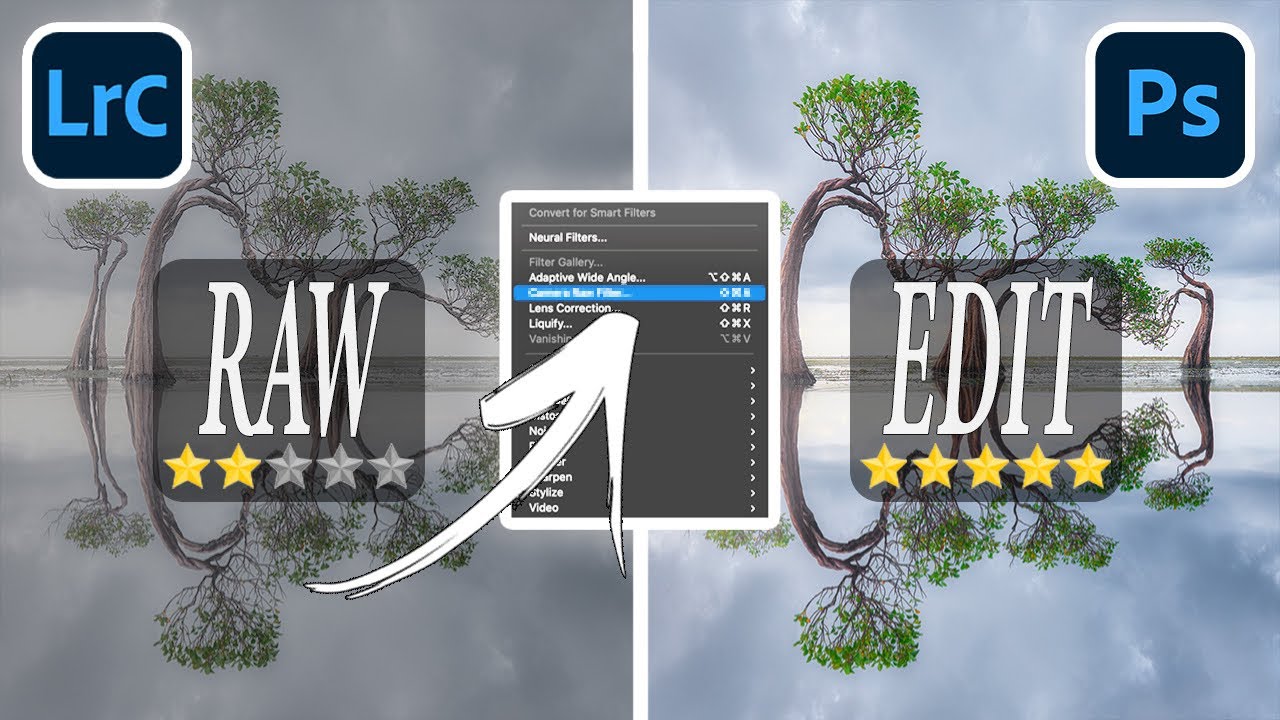
The Photoshop Feature Lightroom Users Are Sleeping On (And How to Finally Use It)

The Photoshop Feature Lightroom Users Are Sleeping On (And How to Finally Use It)

I’ll be honest with you: for a long time, I was a Photoshop avoider. I build presets for a living, I live inside Lightroom’s Develop module, and every time I opened Photoshop it felt like walking into someone else’s kitchen and not knowing where anything was. I’d close it within five minutes and tell myself Lightroom was “enough.” It was a cope. And if you’ve ever done the same thing, this breakdown is for you.
Turn Holiday Photos Into a Polished Slideshow in Lightroom (Without Touching Photoshop)

Turn Holiday Photos Into a Polished Slideshow in Lightroom (Without Touching Photoshop)

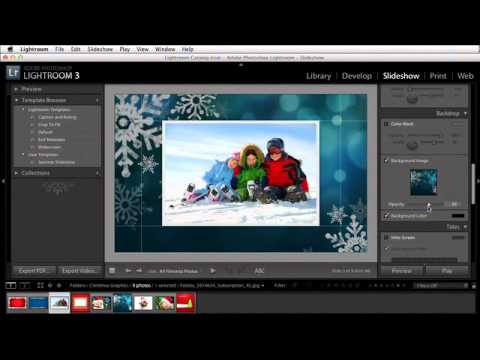
Every December, someone in my family texts me some version of the same message: “Can you put together something with the Christmas photos?” And every year, I used to open Photoshop, spend forty-five minutes making a title card, and wonder why I’d made my own holiday harder. Lightroom has a perfectly capable Slideshow module sitting right there, and I was ignoring it like a dusty record I’d never actually played.

Lightroom Classic vs. Lightroom vs. Lightroom Mobile: Which One Actually Belongs in Your Workflow?

Lightroom Classic vs. Lightroom vs. Lightroom Mobile: Which One Actually Belongs in Your Workflow?

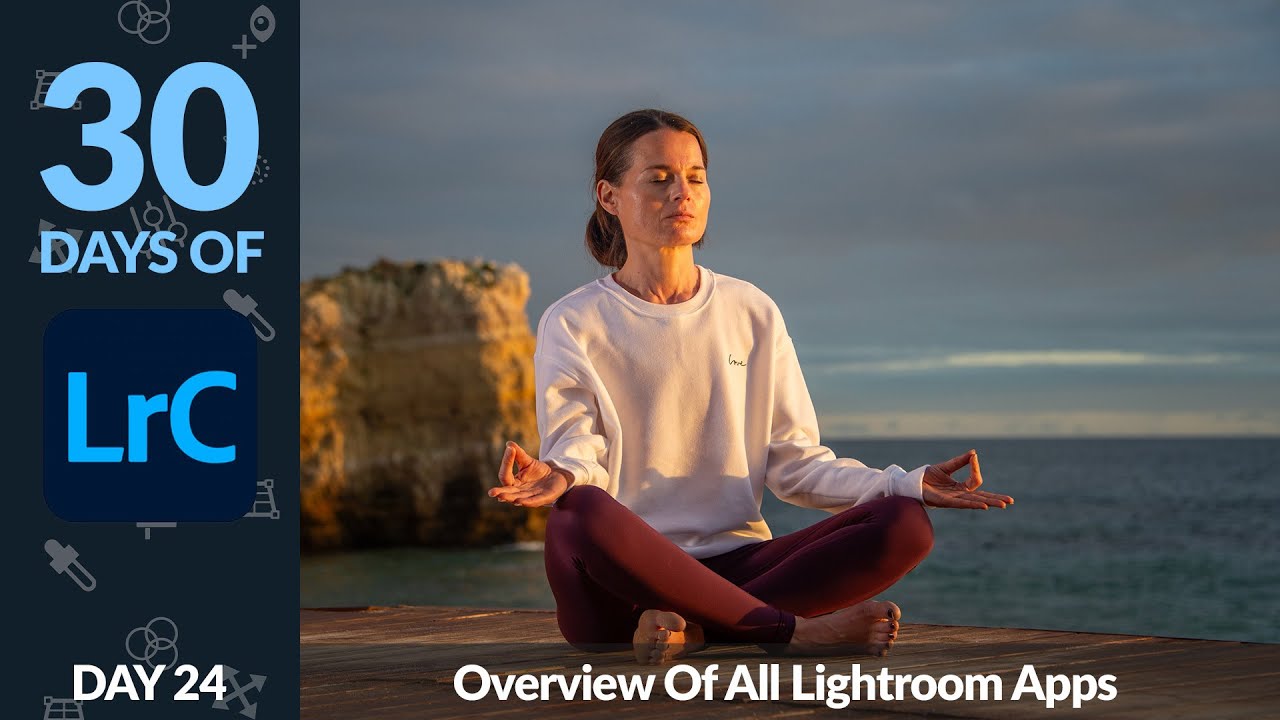
For a long time, I assumed everyone already knew there were three separate Lightroom applications. Then I started getting the same question over and over from readers: “Wait, which Lightroom am I supposed to download?” It’s a genuinely confusing situation, and Adobe hasn’t exactly made it easy to understand at a glance. If you’ve ever stared at the Creative Cloud app and wondered why there are multiple entries for what feels like the same program, this breakdown is for you.

Split Toning Is the Reason Your Photos Look Flat (And How to Fix It in Under 5 Minutes)

Split Toning Is the Reason Your Photos Look Flat (And How to Fix It in Under 5 Minutes)

I used to wonder why my edits looked competent but not compelling. Exposure was right. Contrast was dialed in. White balance was technically correct. And yet something about them felt like a Wikipedia photo, clinical and finished but not alive. It took me embarrassingly long to figure out the culprit: I was treating highlights and shadows like they both needed to be neutral, and that’s exactly why nothing was singing.

The Light at the End of the Alley: How to Give Moody Travel Photos the Atmosphere They Deserve

The Light at the End of the Alley: How to Give Moody Travel Photos the Atmosphere They Deserve

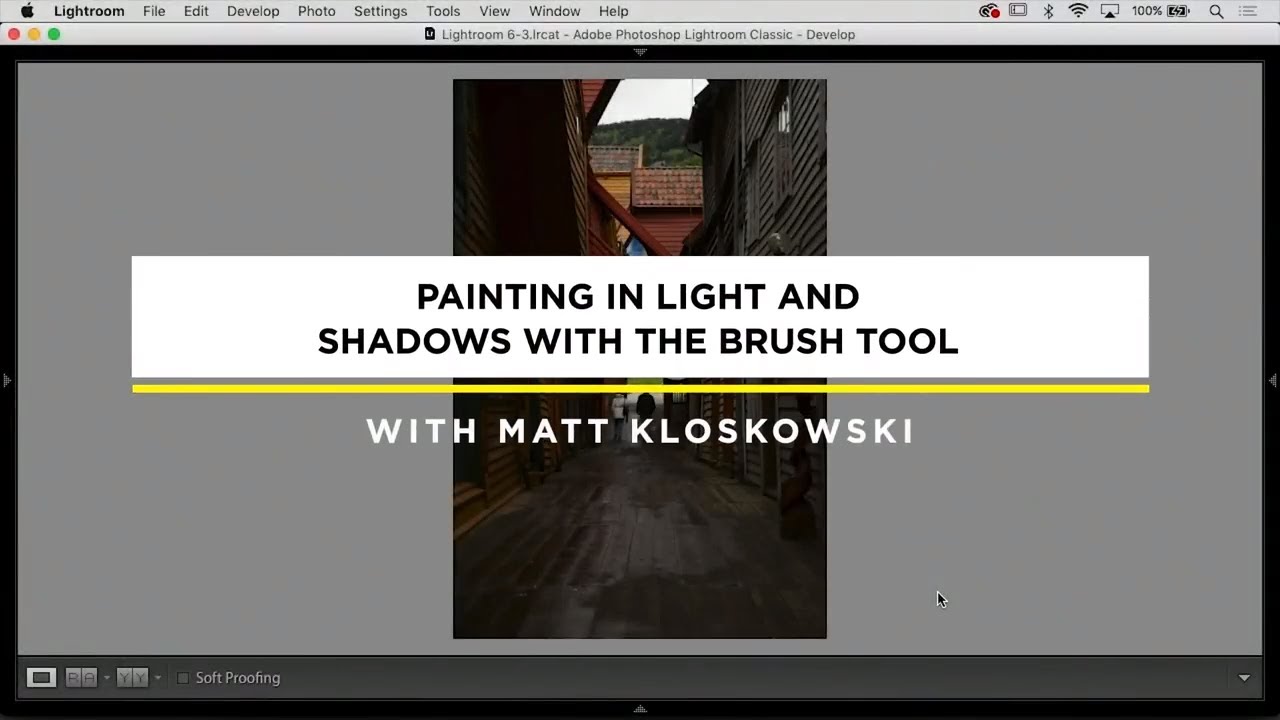
There’s a specific kind of travel photo I used to quietly dread opening in Lightroom. You know the one. A narrow alleyway, a cobblestone path threading between buildings, maybe a sliver of sky overhead. You took it because something about the scene grabbed you in person, but when you import it, the magic has completely evaporated. The exposure looks wrong no matter which direction you push it. The shadows go muddy, the highlights go nuclear, and the whole thing just sits there looking like a documentation photo rather than a travel memory.

How to Change Any Color in Lightroom Using Masks (No Photoshop Required)

How to Change Any Color in Lightroom Using Masks (No Photoshop Required)

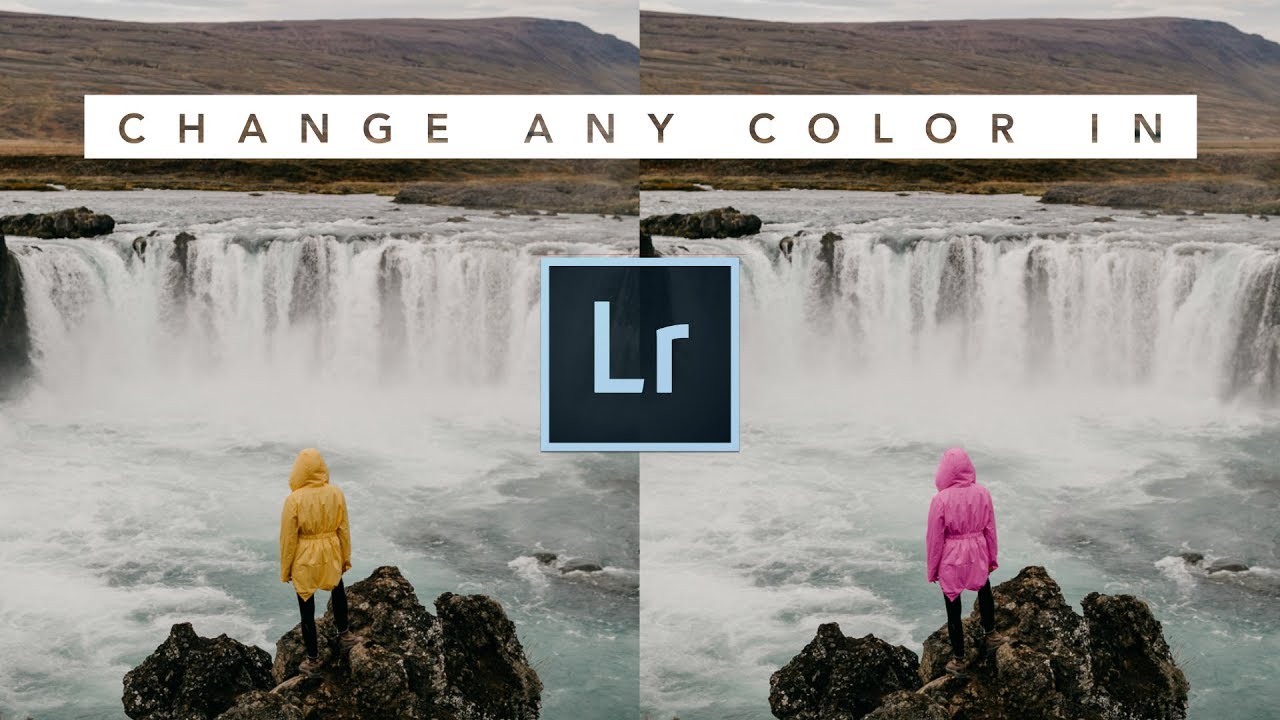
Most of my clients have no idea how much color work happens after the shutter clicks. A jacket that photographs as a muddy burgundy. A sky that came out flat and grey when it was golden in real life. A product shot where the background color just isn’t sitting right against the subject. These are the kinds of problems I used to punt to Photoshop, fire up a Select and Mask workflow, and spend twenty minutes fixing what should have taken five.

HSL Adjustments Are the Most Underused Tool in Lightroom — Here's How to Actually Use Them

HSL Adjustments Are the Most Underused Tool in Lightroom — Here's How to Actually Use Them

The Edit That Made Me Stop Ignoring HSL A few years ago I was editing press shots for my band on a borrowed laptop, trying to make a dingy rehearsal space look like somewhere a real band would actually want to be. I’d done my usual thing: pushed the whites, pulled the blacks, added a little warmth in the tone curve. It looked fine. But “fine” doesn’t book shows. The problem was the walls.

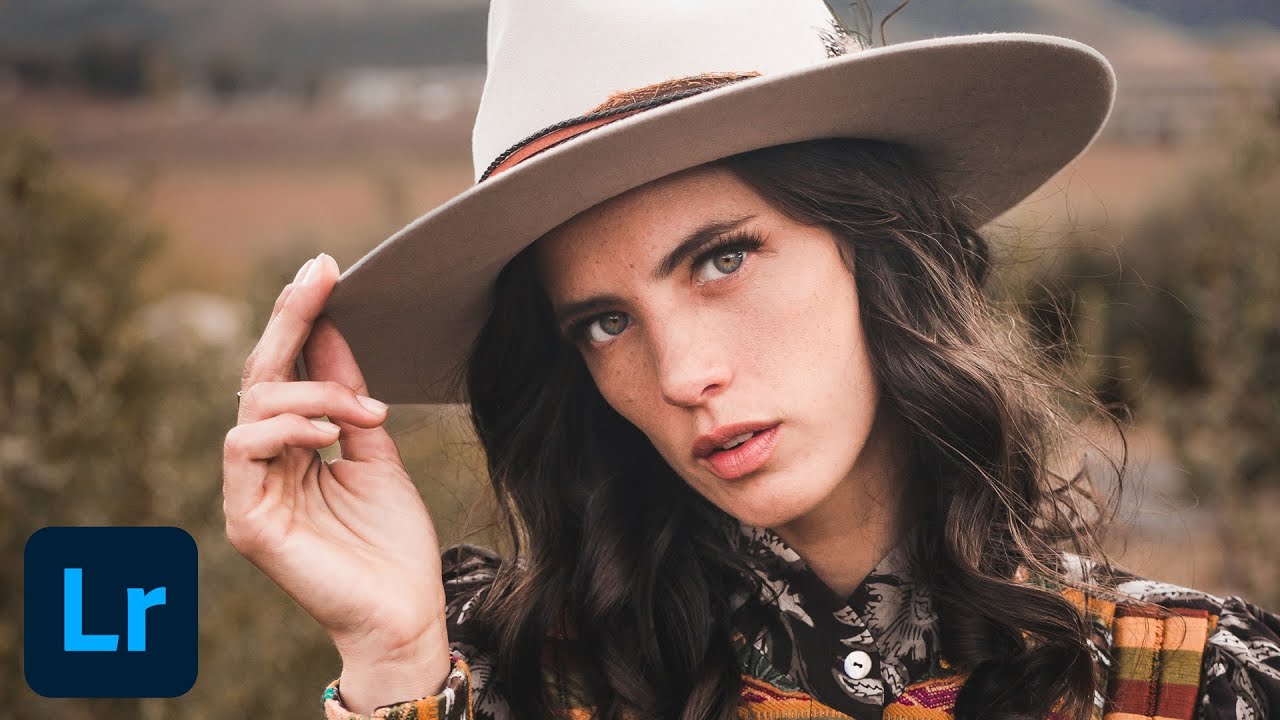
Edit Your Subject and Background Like They're on Separate Layers - Without Leaving Lightroom

Edit Your Subject and Background Like They're on Separate Layers - Without Leaving Lightroom

One problem that used to send me into Photoshop almost every single shoot was this: the subject looks great but the background is flat, or the background has beautiful color and the subject is overexposed. Treating them as one image and dragging sliders around never actually solves it. You end up compromising both. For a long time, the clean solution meant round-tripping to Photoshop, painting masks by hand, and praying your selection held up at 100%.

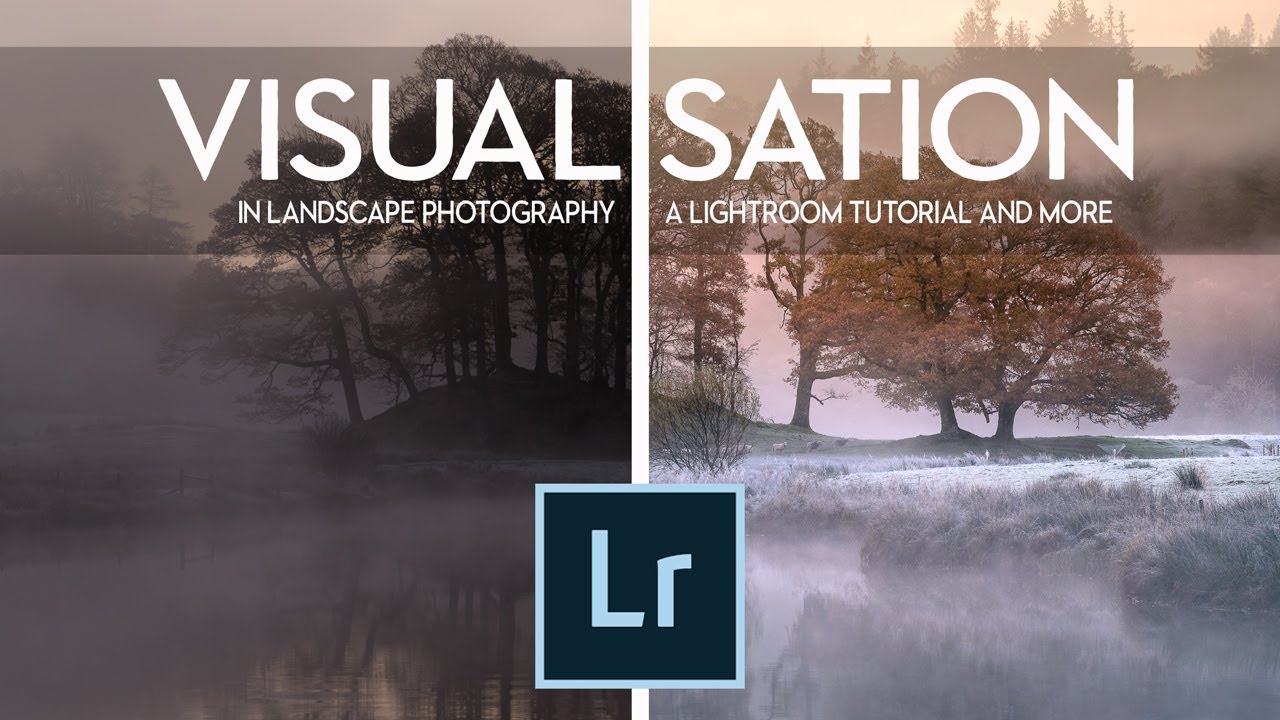
Before You Touch a Slider: What Nigel Danson's Landscape Workflow Taught Me About Seeing First

Before You Touch a Slider: What Nigel Danson's Landscape Workflow Taught Me About Seeing First

Most of my worst edits share the same root cause. I opened a raw file, started dragging sliders, and hoped something good would happen. The file looked flat, so I’d crank contrast. The sky looked pale, so I’d push blues. Thirty minutes later I had something technically processed and emotionally empty. It looked edited. It didn’t look felt. That’s the exact problem that Nigel Danson addresses head-on in this landscape Lightroom tutorial.

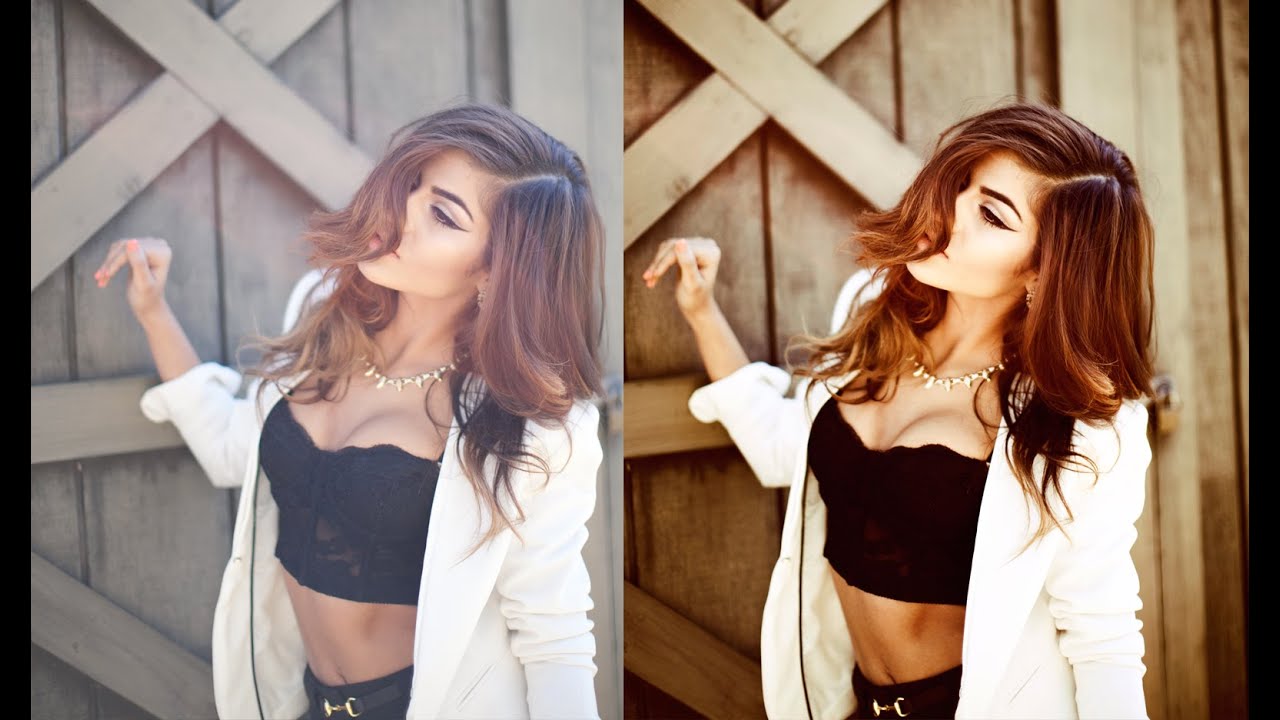
How to Get a Warm, Film-Toned Look in Photoshop Using Four Adjustment Layers

How to Get a Warm, Film-Toned Look in Photoshop Using Four Adjustment Layers

Most of my workflow lives inside Lightroom. That’s no secret. But every once in a while, a Photoshop technique comes along that makes me stop what I’m doing, close my preset panel, and actually pay attention. This is one of those techniques. Watch the full tutorial on YouTube In this Jessica Kobeissi tutorial, she walks through a warm-toned color grading effect using just four adjustment layers in Photoshop. No plugins, no complicated masking, no frequency separation rabbit holes.

Why Your Color Grades Fall Apart (And the Lightroom Workflow That Fixed Mine)

Why Your Color Grades Fall Apart (And the Lightroom Workflow That Fixed Mine)

The Problem Shows Up at the Worst Possible Moment I was culling a 340-image wedding gallery last spring, halfway through a cup of coffee, when I realized my color grade looked completely different on the shaded reception shots than it did on the golden hour portraits. Same preset. Same camera. Same shooting conditions, more or less. But the images looked like they came from two different photographers with two different aesthetic philosophies.

HSL Adjustments Are the Reason Your Colors Look Flat (And How to Fix That)

HSL Adjustments Are the Reason Your Colors Look Flat (And How to Fix That)

I was editing a set of golden hour portraits last spring, and something was wrong. The exposure looked right. The white balance was dialed in. The highlights were pulled back, the shadows were lifted — all the usual moves. But the image still felt like it had a film of gray gauze stretched over it. Flat. Lifeless. Like the color was embarrassed to be there. The problem wasn’t my global adjustments.